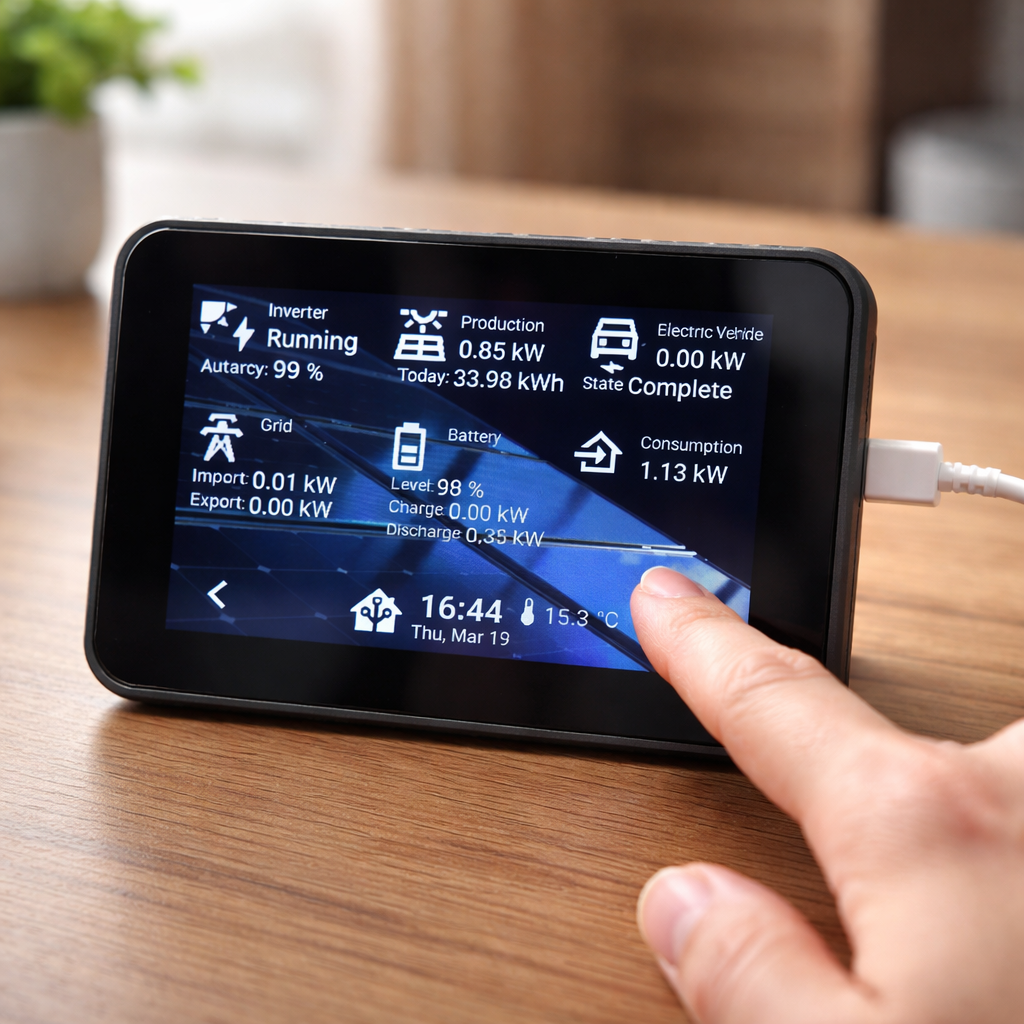
This project aims to create a low-cost, wall-mounted smart home dashboard using an ESP32‑S3 with a touchscreen, fully integrated into Home Assistant via ESPHome. The goal is to have a responsive, multi-page interface in the kitchen that can display energy consumption, sensor statuses, door/window contacts, or any other data relevant to your home.
I’ve invested a lot of time getting this setup running, studying countless blog articles, reading forum discussions, and researching various approaches. I want to share my findings here with the community to give back and help others who are working on similar projects.
Technical Requirements
- ESP32‑S3 based board with Wi-Fi and touchscreen support
- Compatible with ESPHome
- Communication via ESPHome native API
- UI rendered directly on the device using the touchscreen
- Must work offline once paired with Home Assistant
- OTA updates supported
- Hardware cost below typical tablet solutions
- Enough RAM for multiple pages and graphics
- Powered via USB or 5V
Why I Chose the Waveshare 3.5″ Touch IPS Display
For this multi-page smart home dashboard, I wanted a display that combined clarity, versatility, and expandability. The Waveshare 3.5″ Capacitive IPS Touch Display stood out for several reasons:
- 3.5″ Capacitive IPS Touchscreen – 320×480 resolution with ~262K colors provides a clear, vibrant interface ideal for dashboards with multiple pages.
- ESP32‑S3R8 Dual-Core MCU – 240 MHz processing power ensures smooth UI updates, sensor polling, and optional audio or camera tasks.
- Onboard Camera Interface – Supports OV2640/OV5640 modules for potential future expansions, such as visual monitoring or computer vision.
- Expanded Connectivity – TF card slot, RTC, IMU, audio codec, and USB‑C enable multimedia, sensor data logging, and additional peripherals.
- Flexible Development – Compatible with both ESP‑IDF and Arduino IDE, allowing easy integration with ESPHome and custom firmware.
Target Device: Waveshare Touch IPS 3.5″ 320×480
- Size: 3.5″
- Resolution: 320×480
- Colors: 262K
- Panel: IPS
- Display Interface: SPI
- Touch Interface: I2C
- Shape: Rectangular
This combination of performance, display quality, and peripheral support made the Waveshare board the clear choice for a reliable, expandable smart home dashboard in the kitchen.
Choosing an ESPHome GUI Designer
For designing the user interface on my ESP32‑S3 projects, I evaluated two web-based ESPHome GUI tools:
- ESPHome LVGL Designer – A modern tool tailored for LVGL integration, offering a polished workflow for creating complex UI layouts.
- ESPHome Designer by Koosoli – A simpler, lightweight web-based interface designer compatible with ESPHome YAML configurations.
After testing both, I opted for Koosoli’s ESPHome Designer. The decision was driven by ease of use, faster prototyping, and direct YAML export, which fits my workflow better. While the LVGL Designer is powerful for more advanced graphics, I preferred the minimal overhead and straightforward approach of the Koosoli tool for my current ESP32‑S3 projects.
Default Settings and Hardware Configuration
For a stable and responsive multi-page dashboard on the ESP32‑S3, it’s important to configure the board and firmware correctly from the start. ESPHome allows setting defaults for boot behavior, memory usage, and additional hardware like audio.
- Device identity – Set
nameandfriendly_namefor Home Assistant integration. - On boot actions – Use
on_bootto start scripts (e.g., auto page cycling) and turn on the backlight at a defined brightness. - Board selection – Choose
esp32-s3-devkitc-1for proper pin mapping and PSRAM support. - Framework and PSRAM – ESP-IDF with
execute_from_psram: trueimproves stability on high-resolution displays; PSRAM in octal mode at 80 MHz is recommended for multi-page dashboards. - Flash size – 16 MB flash ensures room for firmware, multiple pages, and assets.
- Audio support – I2S audio can be configured for sound output using GPIO pins for LRCLK and BCLK.
Example ESPHome configuration:
# ============================================================================
# TARGET DEVICE: Waveshare Touch IPS 3.5 3.5" 320x480
# Name: Waveshare Touch IPS 3.5 3.5" 320x480
# Link: https://www.waveshare.com/3.5inch-capacitive-touch-lcd.htm
# Size: 3.5"
# Resolution: 320x480
# Display Color: 262K
# Display Panel: IPS
# Display Interface: SPI
# Touch Interface: I2C
# Shape: rect
#
#         - Display Platform: ST7796S
#         - Touchscreen: FT6336U
#         - PSRAM: Yes
# ============================================================================

esphome:
  name: "${name}"
  friendly_name: "${friendly_name}"
  on_boot:
    priority: -100
    then:
      - script.execute: auto_cycle_timer
      - light.turn_on:
          id: display_backlight
          brightness: 0.7 # 70%

esp32:
  board: esp32-s3-devkitc-1
  framework:
    type: esp-idf
    # For stability on S3 devices with high-res displays/LVGL:
    advanced:
      execute_from_psram: true
  flash_size: 16MB

# PSRAM is strongly recommended for larger screens
psram:
  mode: octal
  speed: 80MHz

# Audio Output über I2S
i2s_audio:
  id: i2s_speaker
  i2s_lrclk_pin: GPIO17
  i2s_bclk_pin: GPIO18
These defaults ensure that the ESP32‑S3 boots reliably, the dashboard pages and backlight are initialized automatically, and additional hardware like PSRAM and audio work without manual intervention.
Backlight Control with PWM
The Waveshare 3.5″ ESP32‑S3 display includes a backlight that can be dimmed using PWM from the ESP32. Controlling brightness with ESPHome keeps the display readable while saving power and reducing glare in the kitchen or other rooms.
- LEDC platform – ESPHome uses the
ledcoutput to generate a PWM signal. - Brightness control – Assign the PWM output to a monochromatic light component for easy integration.
- Restore mode – Setting
restore_mode: ALWAYS_ONensures the backlight turns on automatically after a reboot. - Pin caution – Avoid strapping pins (GPIO45 and GPIO46) to prevent boot issues.
Example configuration:
# Backlight PWM output and light component
# Do not use Strapping-Pins GPIO45 and GPIO46
output:
  - platform: ledc
    pin: GPIO06
    id: GPIO06
    frequency: 2000
    channel: 0light:
  - platform: monochromatic
    output: GPIO06
    name: Display Backlight
    id: display_backlight
    restore_mode: ALWAYS_ON    # I2C bus for touch controller and GPIO expander
This setup provides smooth, reliable backlight control for your multi-page dashboard, ensuring the display is always visible and responsive to ambient conditions.
Using the PCA9554 GPIO Expander
The Waveshare 3.5″ ESP32‑S3 display uses a PCA9554 I2C GPIO expander to handle some control lines like display reset and chip select. This frees up ESP32 pins and matches the display’s hardware wiring.
- I2C connected – The PCA9554 communicates over the same I2C bus as the touch controller.
- ESPHome support – You can assign display reset and CS pins to the PCA9554 in the YAML configuration.
- Reliable initialization – Without configuring the PCA9554, the display may not initialize correctly or could behave unpredictably.
Example configuration in ESPHome:
# PCA9554 GPIO expander for display reset/chip select
pca9554:
  - id: p_c_a
    address: 0x20
    i2c_id: i2c_bus# SPI bus for display
This setup ensures the SPI display works reliably while keeping the ESP32’s GPIOs available for other sensors or outputs.
Touchscreen Orientation and Transformation
The Waveshare 3.5″ ESP32‑S3 touchscreen (FT6336) may report X and Y coordinates differently depending on how the display is mounted. ESPHome allows transforming the touch input to match your layout using swap_xy, mirror_x, and mirror_y.
- swap_xy: true/false – Swap X and Y axes if the touch seems rotated relative to the display.
- mirror_x / mirror_y: true/false – Flip coordinates along the respective axis if touch feels mirrored.
Example ESPHome configuration:
# I2C bus for touch controller
i2c:
  - id: i2c_bus
    sda: 8
    scl: 7
    scan: true# FT6336 touchscreen

# FT6336 touch controller
touchscreen:
  platform: ft63x6
  id: my_touch
  transform:
    swap_xy: true
    mirror_x: false
    mirror_y: true
  on_touch:
    - lambda: |-
        // Page navigation by touch zones
        if (touch.x >= 0 && touch.x <= 80 && touch.y >= 240 && touch.y <= 320) {
          if (id(display_page) > 0)
            id(change_page_to).execute(id(display_page) - 1);
        } else if (touch.x >= 400 && touch.x <= 480 && touch.y >= 240 && touch.y <= 320) {
          if (id(display_page) < 1)
            id(change_page_to).execute(id(display_page) + 1);
This ensures that taps, swipes, and page navigation behave intuitively, regardless of how the display is installed. It’s especially useful for multi-page dashboards or kitchen-mounted screens where the orientation may differ from default.
Display Color Order and Configuration
For the Waveshare 3.5″ ESP32‑S3 display with ST7796 controller, the color order and pixel format matter for proper rendering. The display supports RGB or BGR ordering, and the ESPHome configuration must match the hardware.
- BGR vs RGB – The Waveshare display defaults to BGR. If the colors look swapped (reds/greens incorrect), set
color_order: bgrin ESPHome. - Pixel mode – Use
pixel_mode: 16bitfor efficient color depth without overwhelming the ESP32‑S3’s RAM. - Invert colors – Sometimes the panel is inverted by default; use
invert_colors: trueif needed.
# SPI bus for display
spi:
  id: display_spi
  clk_pin: GPIO05
  mosi_pin: GPIO01
  miso_pin: GPIO02# ST7796 display

# ST7796 display
display:
  - platform: mipi_spi
    model: st7796
    id: my_display
    spi_id: display_spi
    cs_pin:
      pca9554: p_c_a
      number: 2
    dc_pin: 3
    reset_pin:
      pca9554: p_c_a
      number: 1
    rotation: 90
    spi_mode: 1
    color_order: bgr
    pixel_mode: 16bit
    invert_colors: true
    lambda: |-
        const auto COLOR_WHITE = Color(255, 255, 255);
        const auto COLOR_BLACK = Color(0, 0, 0);
        const auto COLOR_RED = Color(255, 0, 0);
        const auto COLOR_GREEN = Color(0, 255, 0);
        const auto COLOR_BLUE = Color(0, 0, 255);
        ...
This ensures accurate colors, good performance, and consistent rendering across all UI pages.
Case and Assembly
I chose a 3D-printable case for the Waveshare 3.5″ ESP32‑S3 display with battery and MagSafe. The display, connectors, and battery fit neatly without trimming, leaving the assembly compact and tidy.
I printed it in black PLA with 0.2 mm layer height, 6 walls, and 25 % infill. The result is sturdy and professional-looking. A big thanks to PixelWave, the creator of this case.