Synchronizing bookmarks across browsers and devices is still a headache. Most browsers rely on proprietary cloud sync solutions, which tie your data to vendor accounts and limit transparency. Users who want full control, privacy, and cross-device consistency face a gap, especially when using browsers like Brave on both desktop and mobile.

A simple scenario highlights the problem: you add or update a bookmark on your desktop browser, but it doesn’t reliably appear on mobile browser without signing into a proprietary account. For open-source enthusiasts or privacy-conscious users, this is unacceptable.
Solution: Combine Floccus and Nextcloud Bookmarks to create a fully open-source, self-hosted synchronization system that works across Desktop and Mobile while keeping data under your control.
Solution Overview
The combination of Floccus and Nextcloud Bookmarks provides a fully open-source, self-hosted solution for browser bookmark synchronization.
Floccus acts as the synchronization client within the browser, while Nextcloud Bookmarks serves as the centralized, vendor-neutral backend. Data ownership remains fully under user control, and the solution works across multiple browsers and platforms.
Prerequisites
- Internet access between clients and the Nextcloud server
- A running Nextcloud instance (self-hosted or trusted provider)
- Administrative access to Nextcloud
- A modern browser (Microsoft Edge, Chromium, Chrome, Brave, …)
Creating an App Password in Nextcloud for Floccus
To avoid using your main Nextcloud password in Floccus and improve security, create a dedicated App Password:
- Log in to Nextcloud with your main user account.
- Click on your user avatar → Settings.
- Scroll to Security → App Passwords.
- Click Create new app password.
- Enter a descriptive name, e.g.,
Bookmarks. - Copy the generated password immediately, it will not be shown again.

Use this App Password in Floccus instead of your main password. This allows Floccus to authenticate with Nextcloud securely, without exposing your primary credentials. If needed, the password can be revoked at any time from the security settings.
Installing the Bookmarks App in Nextcloud
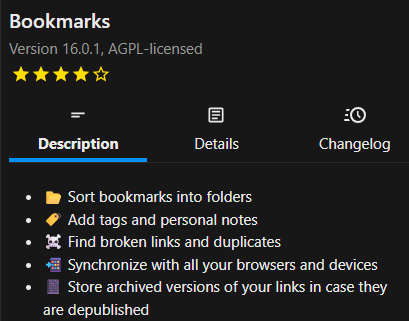
Before configuring Floccus, the Nextcloud Bookmarks app must be installed and enabled. This requires administrative access:
- Log in to Nextcloud as an administrator.
- Click your user avatar → Apps.
- In the search bar, type Bookmarks.
- Click Install to add the app to your Nextcloud instance.
- Once installed, ensure it is enabled.
The Bookmarks app exposes a REST API that Floccus uses to synchronize browser bookmarks. No further configuration is required for basic operation. At this point, the Nextcloud server is ready to accept connections from Floccus clients.
Installing and Configuring Floccus in Brave Desktop
With your Nextcloud App Password ready, you can now install Floccus in e.g. Brave Desktop:
- Open the Chrome Web Store (Brave is Chromium-based)
- Install the Floccus extension
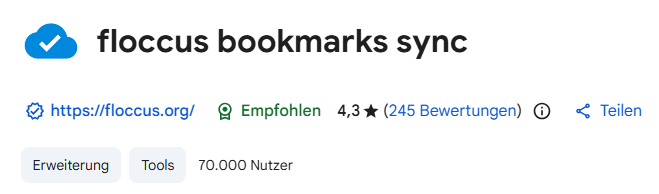
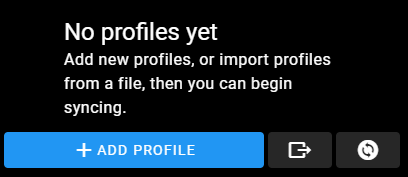
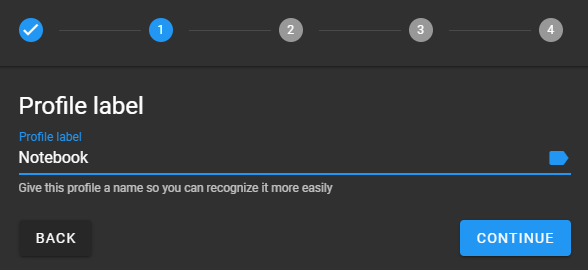
- Click the Floccus icon → Settings → Add Profile
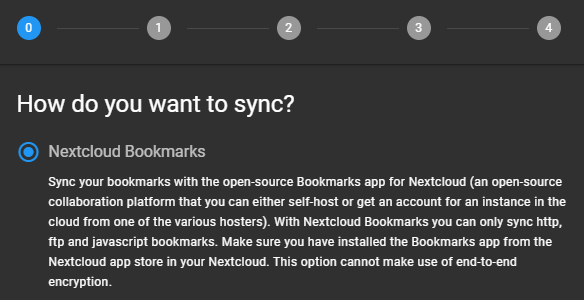
- Select Nextcloud Bookmarks as the sync method
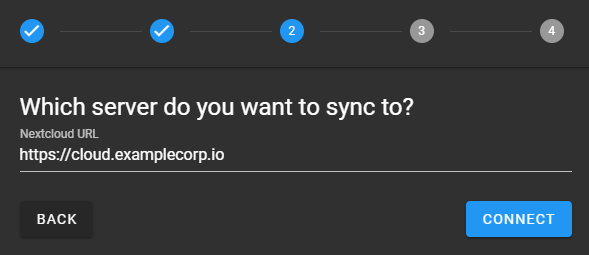
- Enter:
- Nextcloud URL (e.g.,
https://cloud.examplecorp.io)
- Nextcloud URL (e.g.,
- Choose Alternative Log in using app password
- Login (your Nextcloud account)
- App Password (the one you created in the previous step)
- Choose a local folder or root for bookmarks
- Save the configuration and trigger the first sync

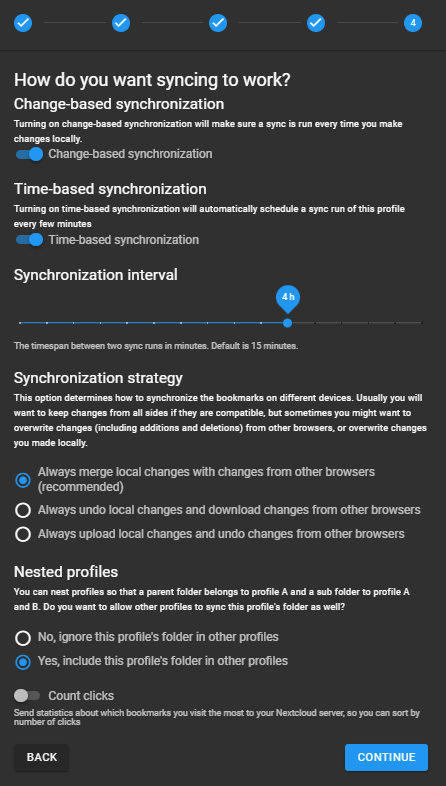
Floccus will map your local Brave bookmarks to Nextcloud. Subsequent changes on the desktop are synchronized automatically at the chosen interval. Conflicts follow the last-write-wins policy.
Installing and Configuring Floccus on Mobile via F-Droid
Native browser extensions are not supported on Brave Mobile. The recommended approach is to use the Floccus Android app from F-Droid:
- Install F-Droid from https://f-droid.org
- Open F-Droid → search for Floccus → install the app
- Open the Floccus app and tap Add account
- Select Nextcloud Bookmarks as the sync method
- Enter:
- Nextcloud URL
- Username
- App Password (created previously)
- Choose which folder to sync or create a dedicated mobile folder
- Trigger the first synchronization
Notes:
- Brave Mobile cannot directly use Floccus, but bookmarks are accessible via the Floccus Android app.
- Bookmarks can then be opened in Brave Mobile via standard share/open mechanisms.
- Full write-sync from mobile requires using Floccus or another compatible browser (like Firefox Mobile) as a client.
Limitations and Conclusion
The Floccus + Nextcloud Bookmarks setup provides a robust, open-source solution for synchronizing Brave bookmarks across desktop and mobile, but it comes with some practical limitations:
- No native Floccus support on Brave Mobile: synchronization must be done via the Floccus Android app (F-Droid) or a compatible browser like Firefox Mobile.
- Sync is interval-based, not instant: bookmarks are updated according to Floccus’ sync schedule or manual triggers.
- Conflict handling is last-write-wins: simultaneous edits on multiple devices may overwrite changes.
- Browser metadata support may vary: tags, favicons, and folder hierarchy may not transfer identically across all clients.
Despite these constraints, this solution offers full data ownership, privacy-focused synchronization, and cross-device consistency without vendor lock-in. It is a pragmatic, maintainable, and transparent workflow for users prioritizing open-source, self-hosted bookmark management.