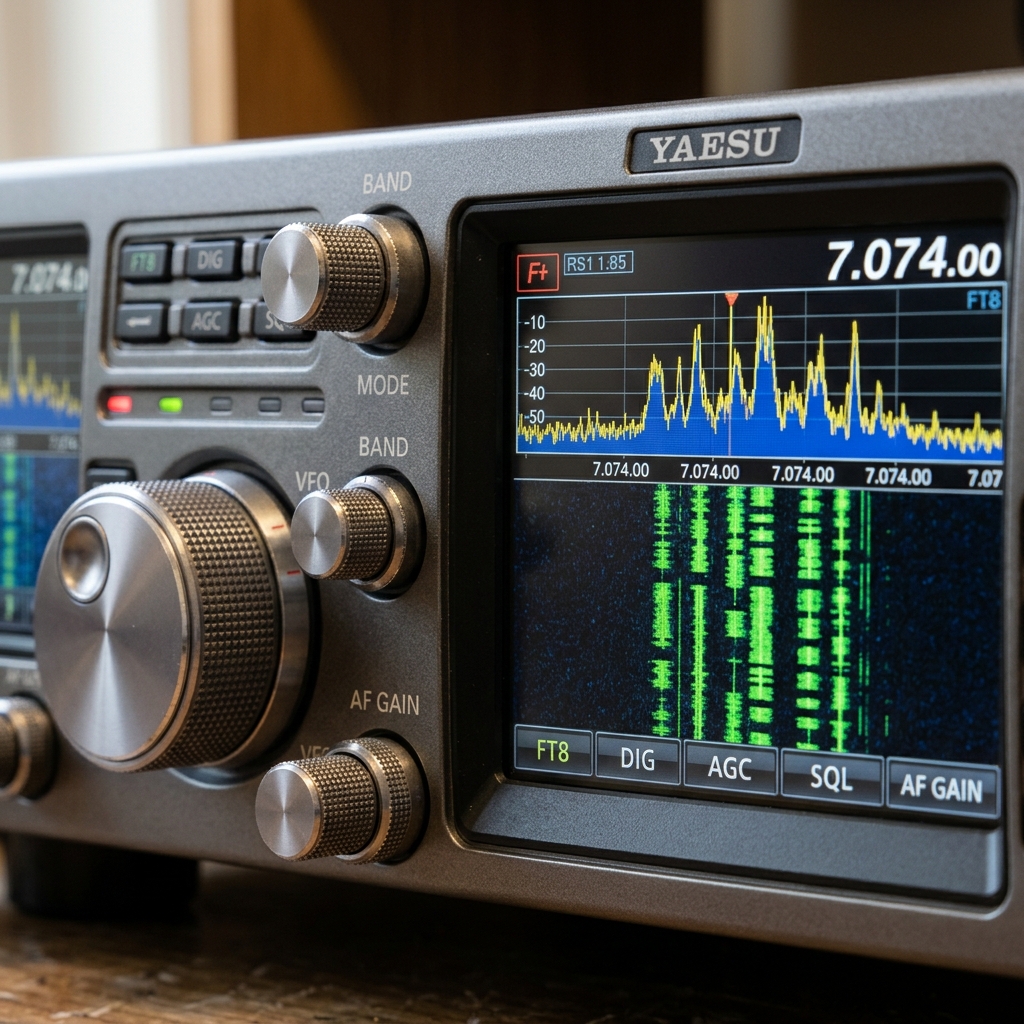
Digital modes have opened up exciting possibilities for amateur radio operators. Whether you operate FT8, FT4 or other supported digital modes, stations from all over the world can appear on your screen.

🔎 But how do you know which countries are active, which stations you have already worked, and where your own signals are being received?
GridTracker 2 helps answer these questions. It transforms decoded digital-mode activity into an interactive world map, combining live station information, geographical data and logbook history.
In this guide, we’ll explore how GridTracker 2 works and how to connect it to other amateur radio applications. As a practical example, I’ll use my own setup with qFT8, PSK Reporter and Wavelog.
Download and Installation
GridTracker 2 is available for Windows, macOS and Linux.
- Download GridTracker Windows 10/11 (32/64) from the official website.
- Install and start GridTracker alongside WSJT-X.
- If GridTracker is installed after WSJT-X, it automatically detects the existing installation and configures the connection between the two applications.
- Configure the connection if it is not detected automatically. GridTracker communicates with WSJT-X using UDP messages.
- Start receiving signals in WSJT-X and watch the stations appear on the map.
For detailed configuration instructions, consult the official GridTracker documentation
📋 Required: Enter your callsign and Maidenhead locator in the GridTracker 2 station settings. These details are essential for GridTracker 2 to identify your station, determine your geographical position, and correctly display your station and FT8 activity on the world map.
GridTracker 2 works with compatible digital-mode applications that provide the required decode information. The exact integration depends on the software and its supported interfaces.
Connecting Your Digital-Mode Software
GridTracker needs live decode information from your digital-mode application.
Depending on the software, this can be provided through UDP or another supported interface.
For my FT8 setup, I use qFT8 as the primary decoding and logging application and connect it to GridTracker 2 to visualize decoded stations and contacts on the world map.
To establish the connection, configure both applications as follows:
Configure qFT8
In qFT8, enable the FT8 Network Log service under:
Settings → More Settings → SERVERS
This allows qFT8 to forward decoded FT8 station data to other applications via UDP.
Configure GridTracker 2
In GridTracker 2, configure the UDP receiver under:
Settings → General → UDP
Use the following settings:
- IP Address:
127.0.0.1 - Port:
2237
These settings apply when both applications are running on the same computer.
Once the connection is established, GridTracker 2 automatically receives decoded station information from qFT8 and displays the stations on its world map.
This provides a convenient real-time overview of received stations, their geographical locations, and potential DX contacts.
For my FT8 setup, I also use WSJT-X as an alternative to qFT8 and connect it to GridTracker 2 to visualize decoded stations and contacts on the world map.
Unlike qFT8, WSJT-X usually requires no manual configuration in GridTracker 2. GridTracker 2 automatically detects WSJT-X and uses its UDP connection settings.
In WSJT-X, make sure the UDP settings are enabled under:
File → Settings → Reporting
The default settings are:
- UDP Server:
127.0.0.1 - UDP Server Port Number:
2237
These settings are normally already configured correctly when both applications run on the same computer.
Once both applications are running, GridTracker 2 automatically receives decoded station information from WSJT-X and displays the stations on its world map in real time.
Adding PSK Reporter
PSK Reporter adds another important piece of information: where your own signals are being received.
It collects reception reports from participating amateur radio stations and makes them available for propagation analysis.
In my setup, qFT8 uploads reception reports to PSK Reporter. GridTracker 2 can display the 24-hour reception history of stations that have reported hearing my transmissions.
You can also explore your reports directly at: PSK Reporter
If a station has recently decoded your transmission, you know that your signal has reached that location. This does not guarantee a successful contact, but it provides a useful indication of propagation conditions.
Connecting Wavelog
GridTracker 2 can retrieve existing QSO information from Wavelog through its API.
Create an API key in Wavelog and enter your server URL and key under:
GridTracker 2 → Settings → Logging → Cloudlog/Wavelog
Test the connection and select the appropriate station profile.
For my setup, qFT8 remains responsible for writing new QSOs to Wavelog. GridTracker only reads the existing logbook data.
This keeps Wavelog as the central logbook and avoids duplicate logging.
Discover New DX Opportunities
With everything connected, GridTracker 2 becomes much more than a map.
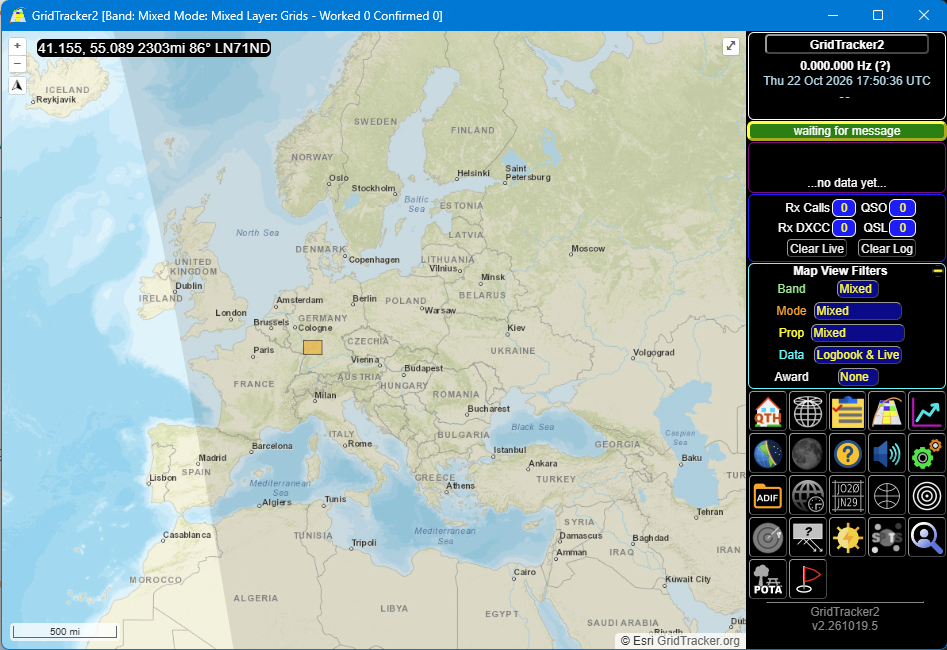
You can:
- See active stations around the world.
- Identify countries and grid squares you haven’t worked yet.
- Compare live activity with your existing logbook.
- Check where your own signals have been received.
- Focus on stations that offer new DX opportunities.
Instead of simply watching decoded messages, you get a geographical overview that helps you decide where to focus your attention.
My Digital-Mode Setup
For my current FT8 operation, I use four applications, each with a clearly defined purpose:
| Application | Purpose |
|---|---|
| qFT8 | FT8 operation and QSO logging |
| GridTracker 2 | Live map and DX overview |
| PSK Reporter | Propagation and reception reports |
| Wavelog | Central logbook and QSO history |
The same basic idea can be applied to other supported digital-mode applications.
Conclusion
GridTracker 2 brings geographical context to digital-mode operation. It helps turn decoded signals into useful information about worldwide activity, worked stations and propagation.
Whether you’re interested in FT8, FT4 or other supported digital modes, GridTracker 2 can be a valuable companion.
Don’t just watch the decodes. Discover where your signals can take you.