RAK WisBlock systems such as the RAK19007 baseboard combined with the RAK4630 core module are fully compatible with Meshtastic. They already include everything needed for a LoRa mesh node: an nRF52840 microcontroller, SX1262 LoRa radio, and Bluetooth for configuration.
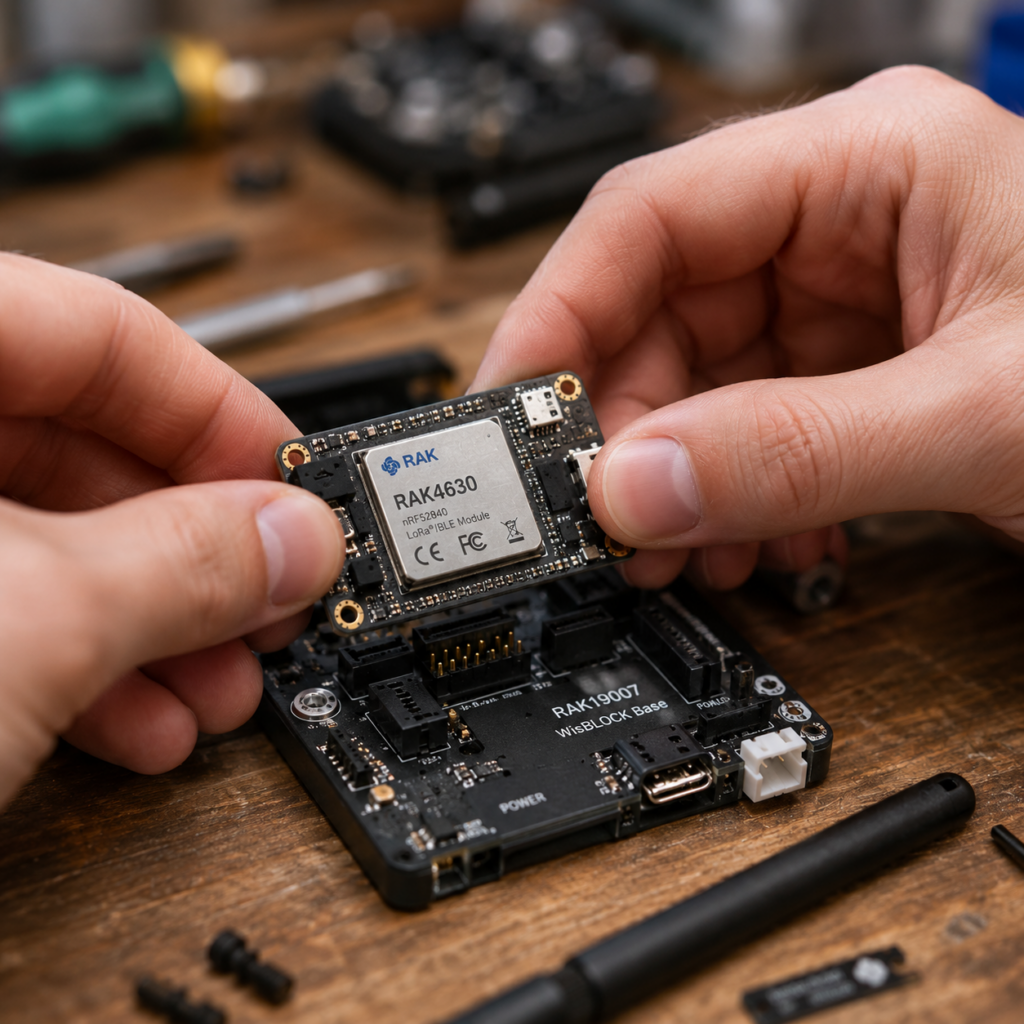
The installation is straightforward and fully browser-based using the official Meshtastic Web Flasher. In normal use, no drivers or additional tools are required.
What You Need
- RAK WisBlock device (e.g. RAK19007 + RAK4630 / RAK4631)
- USB data cable (must support data transfer, not charge-only)
- Chrome or Edge browser
- Meshtastic Web Flasher
Official Web Flasher:
https://flasher.meshtastic.org
⚠️ Important: Always connect the LoRa antenna before powering on the board. Operating the device without an attached antenna may permanently damage the RF hardware.
Flashing Meshtastic Firmware (Web Flasher)
The recommended method is the official Meshtastic Web Flasher.
Inside the flasher:
Select Device Family
- Connect your WisBlock device to your computer via USB.
- Choose
Autodetectfirst. DFU mode should start automatically. - If autodetection does not work, manually select:
RAK WisBlock 4631 / nRF52840 (RAK4630 / RAK4631 / RAK4631-compatible)
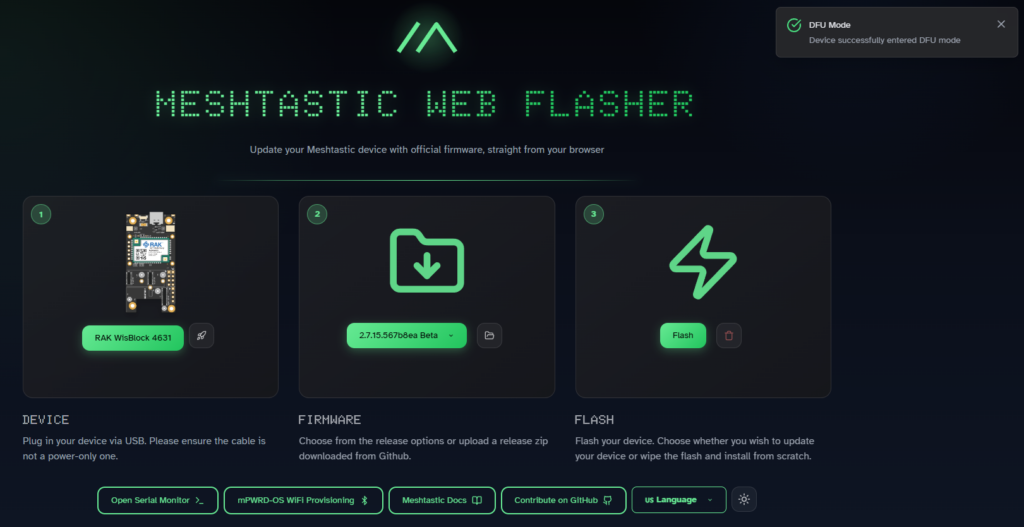
Flash Firmware
The Web Flasher will:
- Automatically detect the correct hardware family
- Download the correct firmware version
- Flash the device directly via browser
- Reboot the device automatically after completion
Important Notes
- Only nRF52840 firmware is compatible
- ESP32 firmware is not supported on WisBlock
- The device may disconnect during flashing (this is expected)
Manual Device Selection
If autodetection does not work for any reason, you can manually select the device type from the list below.
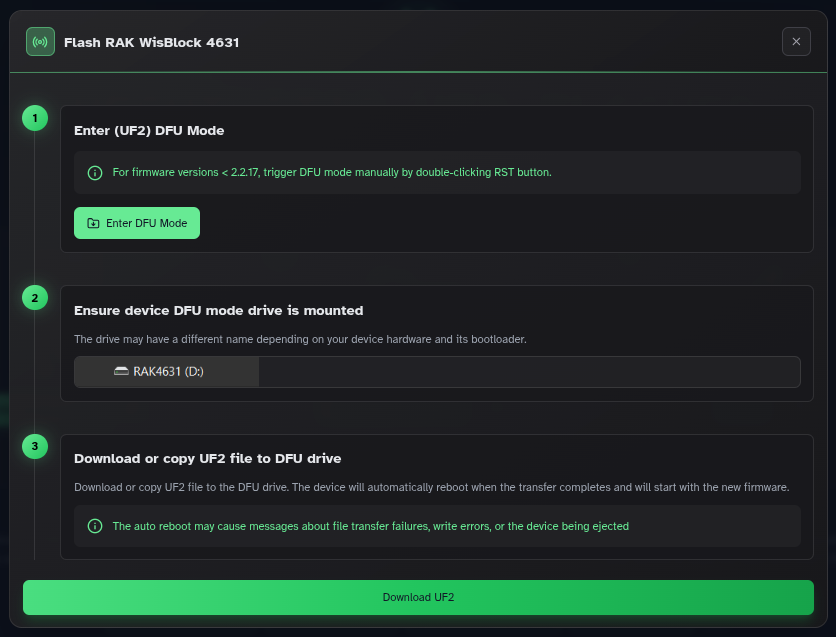
Entering Bootloader Mode (UF2 Mode)
RAK WisBlock devices use a UF2 bootloader for firmware flashing.
Standard method:
- Press the RESET button twice quickly
If successful:
- The device appears as a USB mass storage device (UF2 drive)
- This indicates DFU / bootloader mode is active
If no drive appears:
- The device is not in bootloader mode
- Repeat the reset sequence or check USB cable
Select Firmware Version (Reference)
The current tested firmware version:
firmware-rak4631-2.7.15.567b8ea.uf2Direct download (for manual flashing if needed):
https://raw.githubusercontent.com/meshtastic/meshtastic.github.io/master/firmware-2.7.15.567b8ea/firmware-rak4631-2.7.15.567b8ea.uf2
Note: Manual UF2 copying is optional. The Web Flasher typically handles this automatically.
Enter DFU Mode
- Ensure the UF2 drive is visible on the system
First Start After Flashing
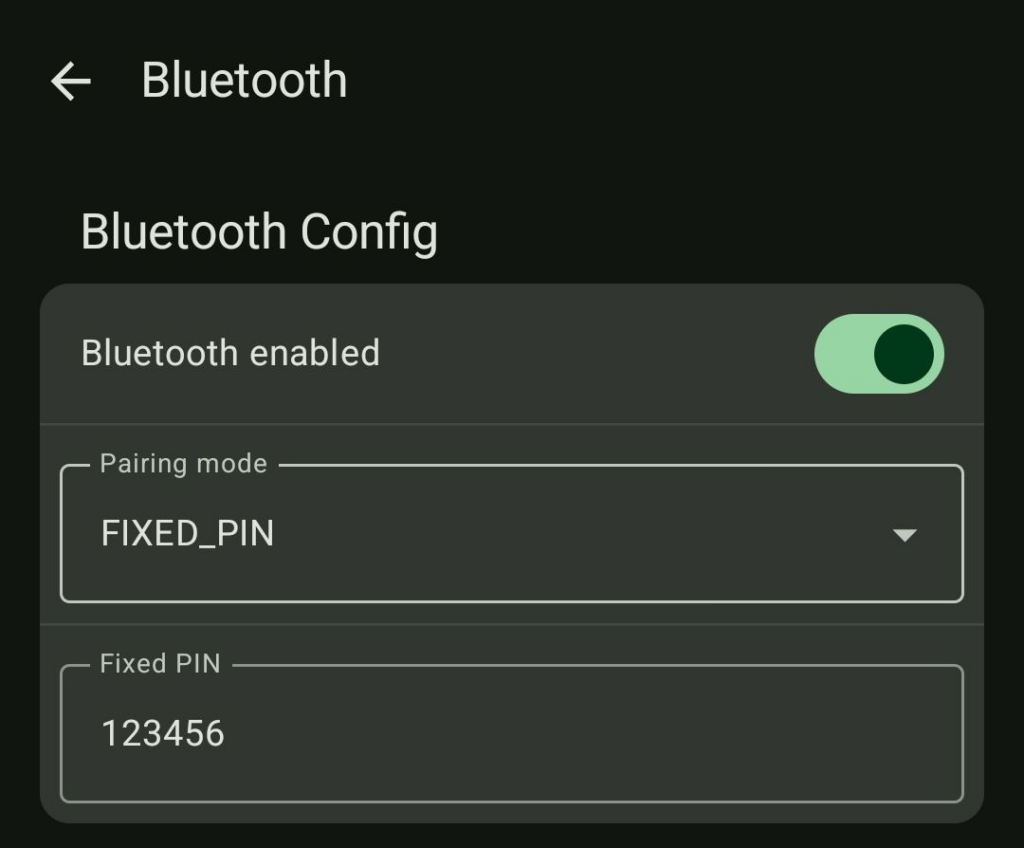
After reboot:
- Meshtastic starts automatically
- Bluetooth becomes available within a few seconds
Default Bluetooth pairing PIN
123456⚠️ Security Note: It is strongly recommended to change this PIN after the first successful connection, since it is publicly known and only intended for initial setup.
Basic Configuration
After pairing the device, only a few basic settings are required:
- Set region to EU_868 for Europe
- Verify that the node appears in the mesh network
- Optionally assign a node name for identification
The region setting is essential for correct frequency usage and compliance with local regulations.
System Overview
A RAK WisBlock Meshtastic node consists of:
- Core module (RAK4630 / RAK4631): runs firmware on nRF52840
- LoRa radio (SX1262): handles long-range communication
- Baseboard (e.g. RAK19007): provides power and expansion
The firmware automatically handles:
- Mesh routing
- Encryption
- Node discovery
- Power management
No manual RF configuration is required beyond region selection.
Summary
Installing Meshtastic on RAK WisBlock hardware is fully browser-based and straightforward.
Typical process:
- Connect device via USB
- Enter UF2 bootloader mode (double RESET)
- Open Meshtastic Web Flasher
- Select RAK nRF52840 device family
- Flash firmware automatically
- Connect via Bluetooth and set region
After this, the node is immediately operational and ready for mesh networking.