If you are running your own self-hosted Wavelog instance, you do not have to rely on the web interface when operating from your smartphone. Wavelog Mobile provides a convenient Android interface for accessing your own logbook and recording QSOs while you are away from your computer.
The good news is that getting started is straightforward. Wavelog already provides a REST API v2, so there is no need to modify your Wavelog installation or install additional software on the server for the basic functionality. All you need is a current Wavelog installation, HTTPS access to your server and an API v2 token.
This is also the approach I recommend starting with. For most operators, the standard API functionality is perfectly sufficient for everyday mobile logging and keeps the Wavelog installation as close as possible to the official version.
Only if you need additional functions provided by Wavelog Mobile should you consider installing the optional server-side patch. That approach is covered later in this article, together with an important warning about Wavelog updates.
Wavelog Mobile is the Android companion app for Wavelog, allowing you to manage your self-hosted amateur radio logbook directly from your smartphone or tablet. Show features
QSO Logging
- Live UTC time or manual date/time
- QRZ.com callsign lookup
- Band, frequency, mode and submode
- RST, power and propagation data
- POTA and SOTA references
- Offline logging with automatic synchronization
Contest Mode
- Create and manage contest sessions
- Serial numbers, grid squares and custom exchanges
- Synchronization with Wavelog
DX Spots
- DX Cluster, POTA, SOTA and WWFF spots
- Filter by band, mode and country
- Post POTA and SOTA spots directly from the app
Logbook & Statistics
- DXCC tracking and QSO map
- Band and mode statistics
- Propagation data
- QSL status tracking
- ADIF import and export
Station Profiles
- Multiple station profiles
- Locator, DXCC and CQ/ITU zones
- POTA, SOTA, WWFF and IOTA references
- QRZ.com, Club Log and HRDLog integrations
Requirements
Wavelog Mobile requires a self-hosted Wavelog installation, Android 8.0 or later, and access to the Wavelog API v2. The old Wavelog Mobile server patch is no longer required for current versions of the app.
The Simple Setup
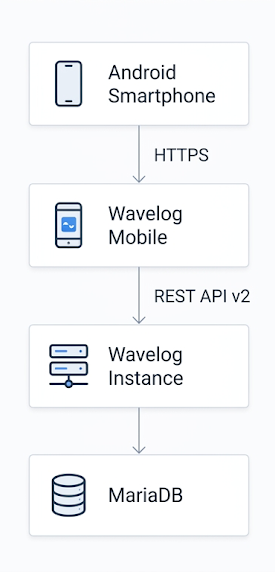
For normal mobile logging, start with the standard Wavelog API. There is no need to modify PHP files or install an additional server-side component.
This is the recommended starting point for most users.
Create an API v2 Token
- Log in to your Wavelog installation and open Settings → API → API Tokens (API v2).
- Click Create New Token and configure the token as follows:
- Token Name:
Wavelog Mobile - Expiration: Choose an appropriate expiration period.
Neveris possible, but an expiration date is preferable from a security perspective.
💡 The api_mobile patch is no longer required: Since Wavelog Mobile v3.2.0, the app no longer uses the old
api_mobilepatch. All features, including DXCC data, confirmations and ADIF export, use the official Wavelog API v2. The patch is therefore no longer required. A standard Wavelog installation with the official API v2 provides the functionality required for normal use of the current app. I did not install the old patch, and Wavelog Mobile works normally.
- Select all available scopes on the left to ensure the mobile application has access to all required API v2 functionality.
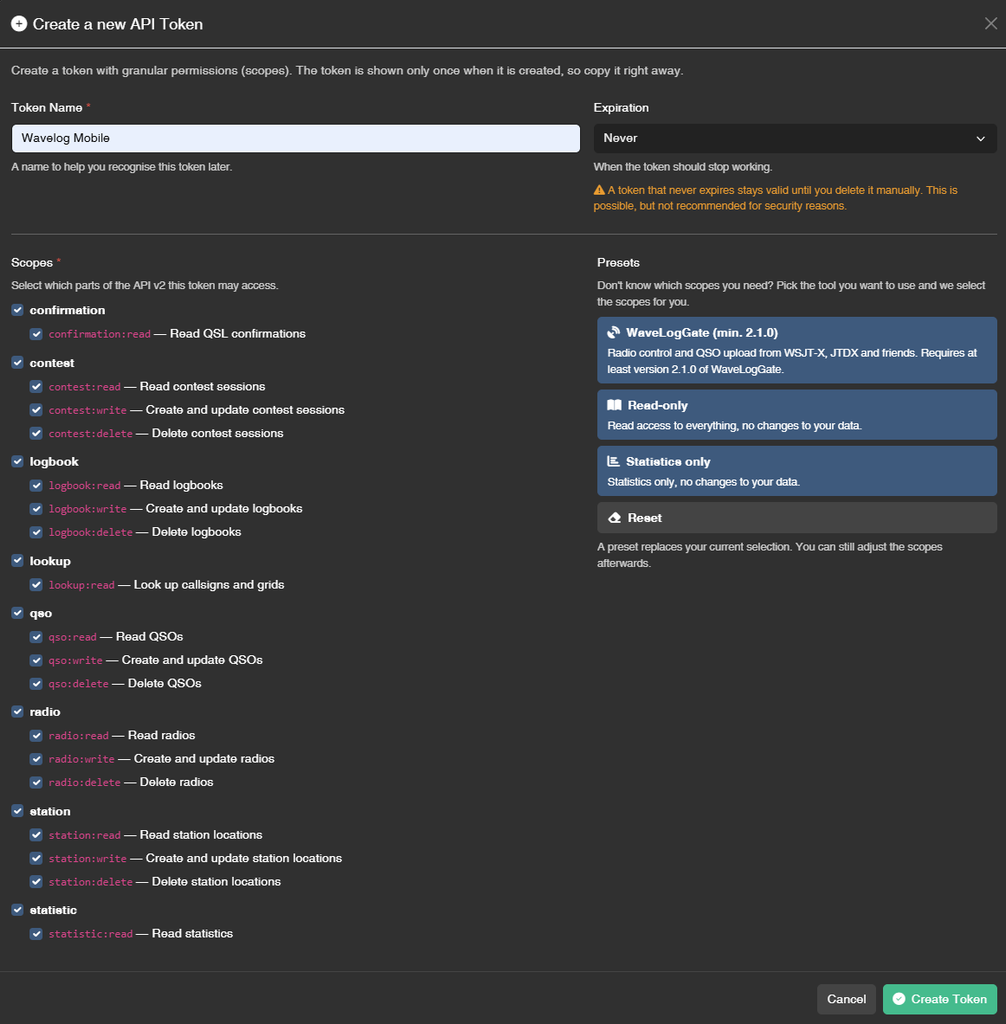
- Once everything is configured, click Create Token.
⚠️ IMPORTANT: The API token is displayed only once. Copy it immediately and store it somewhere secure. Anyone who obtains a token with write or delete permissions can potentially modify or delete data in your Wavelog installation.
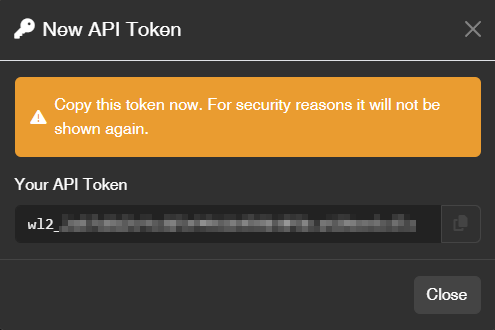
You can revoke the token later if necessary, but the token itself cannot be displayed again after creation.

Install Wavelog Mobile from the Google Play Store
Open the Google Play Store on your Android smartphone or tablet and search for: Wavelog Mobile
Alternatively, you can open the official Google Play Store listing directly:
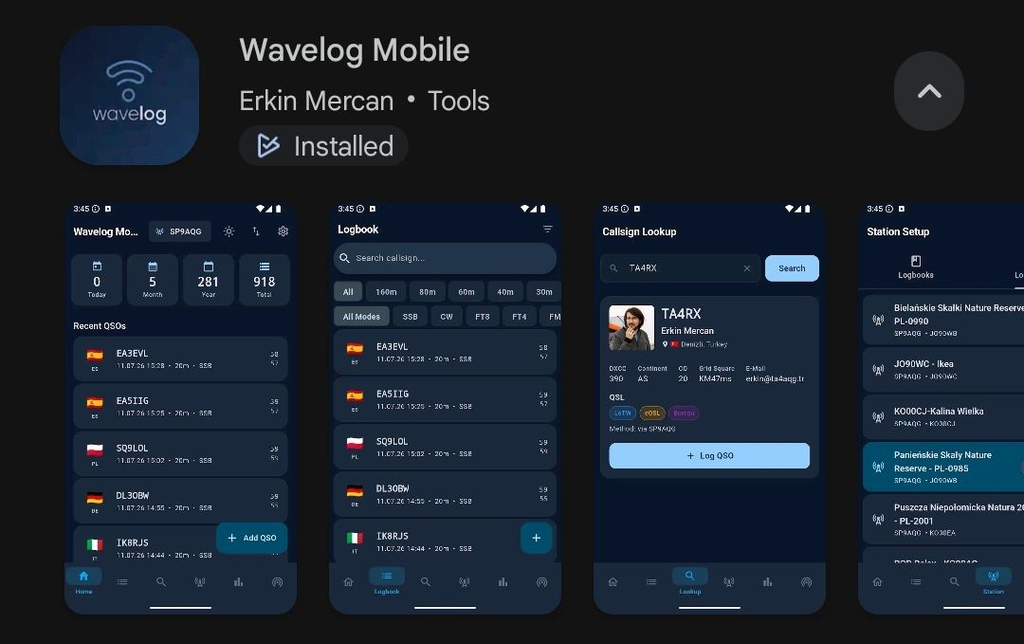
- Make sure you select the app named Wavelog Mobile. The developer is Erkin Mercan.
- Tap Install to download and install the application.
After the installation is complete, open Wavelog Mobile. The next step is to configure the connection to your self-hosted Wavelog instance using the API v2 token created in the previous chapter.
Connect Wavelog Mobile to your Server
After installing Wavelog Mobile, open the app on your Android device.
The initial setup is straightforward:
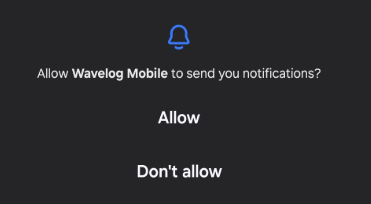
- Allow Wavelog Mobile to send you notifications
- Press Start Setup
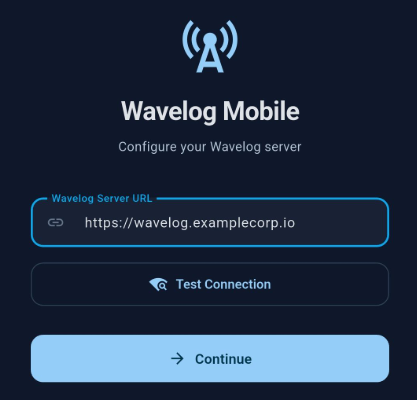
- Enter your Wavelog URL
- The app first asks for the URL of your Wavelog installation.
- Enter the complete URL (FQDN), including the
https://prefix. - For example:
https://wavelog.examplecorp.io
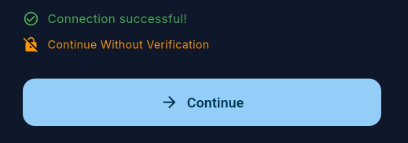
- Test the connection
- Tap Test Connection.
- The app will check whether your Wavelog server can be reached.
- If everything is configured correctly, it will display: Connection successful!
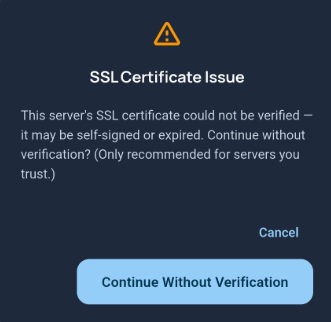
- SSL Certification Issue
- If you use a private or self-signed certificate, Wavelog Mobile may display a certificate verification notice.
- Only continue without verification if you trust the server you are connecting to.
- Continue
- Tap Continue to proceed with the setup.
- The app will then continue with the authentication and configuration of your Wavelog connection.
Add Your Wavelog Account
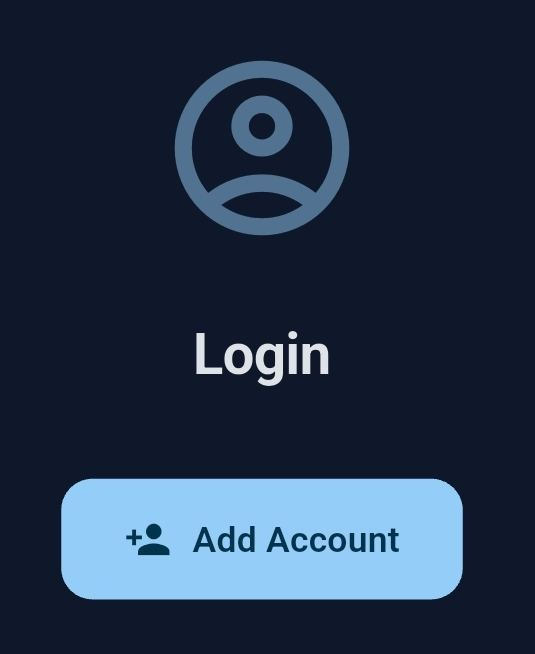
After successfully testing the connection to your Wavelog server, select Add Account.
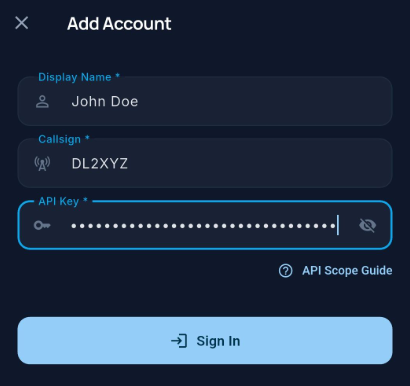
A dialog will appear with the following fields:
- Display Name: Enter a name for this account or profile. This is only used to identify the account within the app, for example
My Wavelog. - Callsign: Enter your personal amateur radio callsign, for example
DN9XXX. - API Key: Enter the API v2 token you created earlier in Wavelog.
- After entering all three values press: Sign In
- The app will then use the API v2 token to connect your Wavelog account and access your logbook.
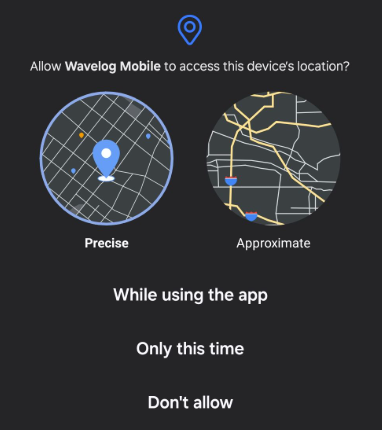
- At the end of the setup dialog, Android will ask whether the app may access your GPS location. This can be useful for automatically filling in your Maidenhead locator and other location based information. We recommend selecting “While using the app”.
Debugging the API Connection
If Wavelog Mobile reports “Login failed: The connection timed out”, the first step is to verify the API independently from the app.
Run the following command on a system that can reach your Wavelog server:
curl -i \
  -H "Authorization: Bearer wl2_YOUR_TOKEN" \
  -H "Accept: application/json" \
  https://wavelog.examplecorp.io/index.php/api/v2/qso
A working API token returns:
HTTP/1.1 200 OK
Content-Type: application/json; charset=utf-8
...
{ "data": [ { "id": 1, "station_id": 1, "qso_date": "2025-08-10 19:29:00", "mode": "FM", "freq": "433.57500", "call": "DL2ABC", "band": "2m", "rst_sent": "5", "rst_rcvd": "5", "gridsquare": "JN49DV", "name": "Max Mustermann", "qth": "Musterstadt", "tx_pwr": "5" } ], "meta": { "timestamp": "2025-08-10T05:34:37+00:00", "resource": "qso", "method": "GET" } }
This confirms that:
- the Wavelog API is reachable
- the API v2 endpoint works
- the Bearer token is valid
- authenticated access to the QSO endpoint works
If the token is invalid or missing the required permissions, Wavelog returns:
HTTP/1.1 401 UnauthorizedIn this case, check the API token and its assigned scopes in Wavelog.
What This Tells You
- If
curlreturns HTTP 200, but Wavelog Mobile still reports a timeout, the problem is most likely not the API token or Wavelog authentication. The next things to investigate are the app configuration, reverse proxy configuration, network connectivity, or IPv4/IPv6 connectivity. - If
curlreturns 401, fix the API token or its scopes first. - If
curlitself times out, investigate nginx, PHP-FPM, firewall, or network connectivity.
Final Thoughts
While evaluating Wavelog Mobile, I initially had to pause my testing at this point. Version 3.2.0 could not connect to my self-hosted Wavelog instance because Flutter did not accept my private CA, even though the Root CA and Intermediate CA were correctly installed and trusted on Android.
I opened a feature request, expecting that I would have to wait for a future update. Instead, Erkin picked up the issue the very same evening, identified the root cause, and implemented proper support for Android user-installed CAs and optional certificate verification for individual Wavelog connections. Just a few days later, the update was available and I could continue testing.
A huge thank you to Erkin for the incredibly fast response, thoughtful implementation, and excellent communication. As a solo developer, this kind of support and commitment is truly remarkable. That is HAM Spirit and Open Source collaboration at its best. Respect, Erkin and 73!
With that issue resolved, I can now confidently recommend giving Wavelog Mobile a try if you are using Wavelog. It provides a convenient way to access your logbook directly from your Android device, whether you are at the shack, operating portable, or simply away from your computer. Having your logbook, DXCC information, QSL confirmations, and other information available on your phone makes keeping your log up to date much more convenient.
For me, Wavelog Mobile is a very practical companion to a self-hosted Wavelog installation. It is actively developed, uses the official Wavelog API, and, as my experience showed, the developer is genuinely responsive to feedback and real-world requirements. If you already use Wavelog, I would definitely recommend giving Wavelog Mobile a try. It is a great example of how a focused open source project can add real value to an already powerful platform.