
When working with printed sheet music, it can be difficult to immediately understand how a piece will sound before actually playing it. A practical approach is to convert the score into a digital format that can be played back automatically. This allows you to listen to the music first, get familiar with its structure, and prepare your interpretation before sitting down at the piano.
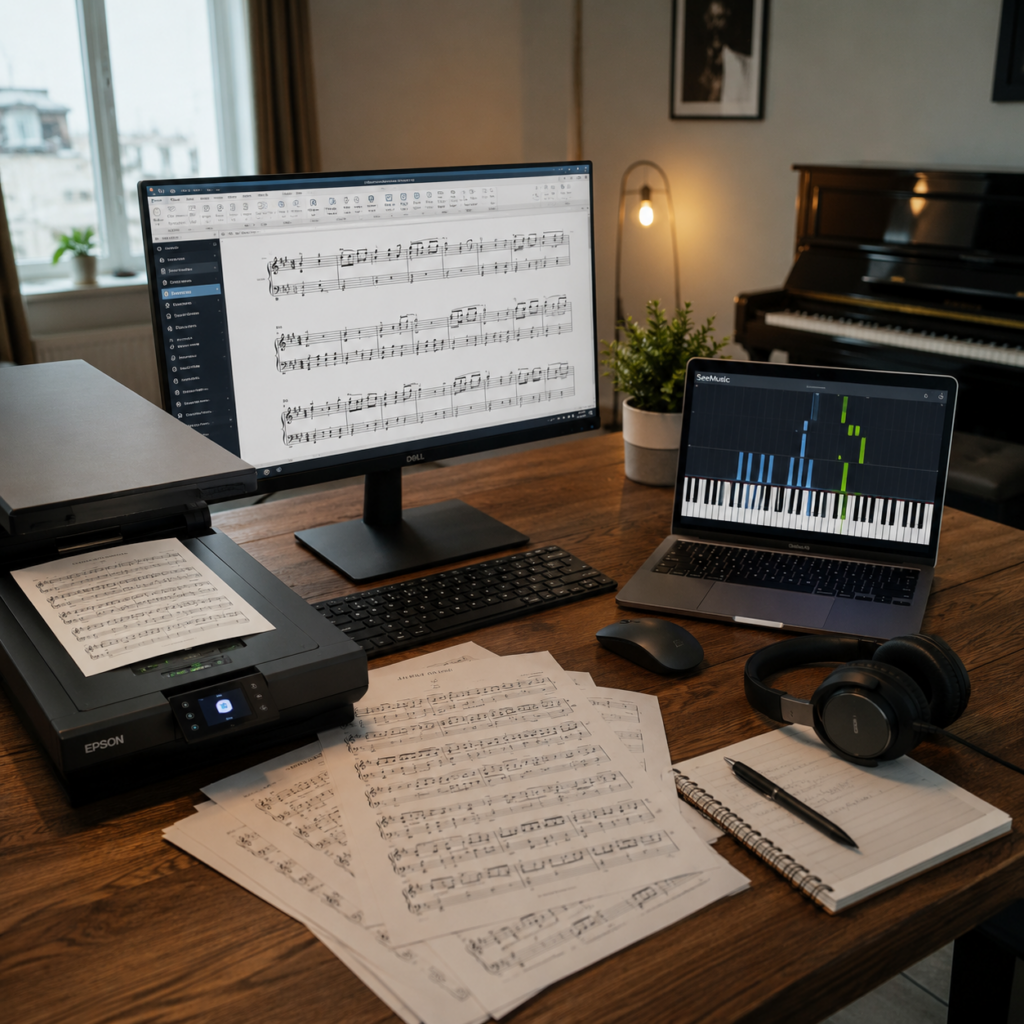
The process typically involves scanning the sheet music, applying optical music recognition (OMR) to extract notes and symbols, correcting recognition errors, and exporting the result as MIDI. The MIDI file can then be imported into playback or notation software such as MuseScore or SeeMusic, where it is rendered as an audible piano performance or visual representation.
Main Idea
The core idea of this workflow is to turn printed sheet music into a playable digital version that can be listened to before practicing at the piano. This helps to quickly understand the structure, rhythm, and musical character of a piece.
The process is built around a simple toolchain:
- Sheet music capture: Scanner or high-resolution camera
- Optical Music Recognition (OMR): Audiveris
- Score correction and editing: MuseScore Studio
- Export format: MIDI or MusicXML
- Playback and visualization: MuseScore Studio or SeeMusic
Together, these tools form a pipeline from physical sheet music to audible or visual playback, making it easier to learn and internalize new pieces before playing them manually.
⚠️Copyright Notice: Please respect the copyright and licensing rights of the composers, publishers, and original creators of the musical works. Sheet music, MIDI files, arrangements, and related materials may be protected by copyright and are not intended for unauthorized publication, redistribution, sharing, or commercial use. Before downloading, modifying, publishing, or distributing any musical material, please ensure that you have the necessary rights or permissions. Always respect the applicable license terms and provide proper attribution where required. This content is provided for educational and personal use only and does not grant permission to reproduce or redistribute copyrighted works.
Installation
This section describes how to install the required tools for the workflow. Each component is installed separately depending on the operating system.
Audiveris (OMR)
Audiveris is used for optical music recognition (OMR), converting scanned sheet music into digital notation.
- Official website: https://audiveris.org/
- GitHub releases: https://github.com/Audiveris/audiveris/releases
On Windows, it is recommended to use PowerShell with administrator privileges. Open PowerShell by right-clicking the Start menu and selecting “Windows Terminal (Admin)” or “PowerShell (Admin)”.
Windows (winget):
PS C:\WINDOWS\System32> winget install Audiveris
Gefunden Audiveris [audiveris.org.Audiveris] Version 5.10.2
Diese Anwendung wird von ihrem Besitzer an Sie lizenziert.
Microsoft ist nicht verantwortlich und erteilt keine Lizenzen für Pakete von Drittanbietern.
Download läuft https://github.com/Audiveris/audiveris/releases/download/5.10.2/Audiveris-5.10.2-windows-x86_64.msi
  ██████████████████████████████  69.8 MB / 69.8 MB
Der Installer-Hash wurde erfolgreich überprüft
Paketinstallation wird gestartet...
Erfolgreich installiert
Audiveris is also available as a downloadable installer from the official releases page.
MuseScore Studio (Notation & Playback)
MuseScore Studio is used for score editing, correction, MIDI export, and playback.
- Official website: https://musescore.org/
- Downloads: https://musescore.org/en/download
On Windows, it is recommended to use PowerShell with administrator privileges. Open PowerShell by right-clicking the Start menu and selecting “Windows Terminal (Admin)” or “PowerShell (Admin)”.
Windows (winget):
PS C:\WINDOWS\System32> winget install MuseScore.MuseScore
Gefunden MuseScore [Musescore.Musescore] Version 4.7.3.260608135
Diese Anwendung wird von ihrem Besitzer an Sie lizenziert.
Microsoft ist nicht verantwortlich und erteilt keine Lizenzen für Pakete von Drittanbietern.
Download läuft https://github.com/musescore/MuseScore/releases/download/v4.7.3/MuseScore-Studio-4.7.3.260608135-x86_64.msi
  ██████████████████████████████   121 MB /  121 MB
Der Installer-Hash wurde erfolgreich überprüft
Paketinstallation wird gestartet...
Erfolgreich installiert
MuseScore also includes Muse Sounds support for more realistic playback via Muse Hub.
SeeMusic (Playback & Visualization)
SeeMusic is used for MIDI playback visualization and animated piano rendering.
- Official website: https://www.seemusicapp.com
Installation is done via the official installer for Windows and macOS. There is currently no official package manager support such as winget or dnf.
Workflow
The workflow describes the end-to-end process from printed sheet music to playable digital output. Each step builds on the previous one and ensures that the final result can be both heard and reviewed before practicing at the instrument.
1. Sheet Music Capture
The process starts by scanning the printed sheet music or taking a high-resolution photo. The image quality is critical, as it directly affects recognition accuracy in the next step.
2. Optical Music Recognition (OMR)
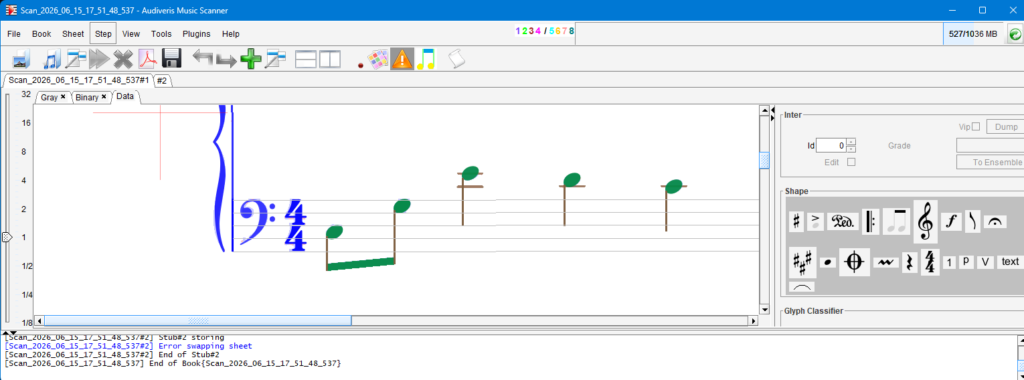
Audiveris is used to convert scanned sheet music into a digital notation format using optical music recognition (OMR). The process starts by importing a document and then transcribing it into editable musical elements.
Importing Sheet Music
To begin, open Audiveris and load your score:
- Navigate to File → Input
- Select a PDF file of your sheet music
Alternatively, Audiveris also supports image formats: BMP, GIF, JPG / JPEG, PNG, TIFF / TIF
Transcribing the Score
After importing the file:
- Go to Book → Transcribe Book (all pages)
- Audiveris will process the entire document and convert it into a digital musical score
This step performs the optical music recognition and generates editable notation elements.
Reviewing and Correcting the Output
Once the transcription is complete, the score can be manually reviewed.
Using the cursor tool, you can:
- Select individual musical elements
- Remove incorrectly detected symbols
- Adjust note values and durations
- Correct rhythms, positions, and articulations
This correction step is important, as OMR results are not always perfect, especially with complex layouts or low-quality scans.
3. Score Correction
The recognized score is imported into MuseScore Studio for manual correction. This step is necessary because OMR tools may misinterpret complex notation, articulations, or layout elements.
4. Export to MusicXML (MXL)
After correcting the score in Audiveris, it can be exported for use in other notation software.
- Go to Book → Export Book As → MXL file
This creates a MusicXML (MXL) file, which is a standard format for digital sheet music. It contains all musical information such as notes, timing, and structure in a structured form.
The MXL file is required to import the score into MuseScore Studio, where it can be further edited and played back with realistic sound.
5. Playback and Visualization
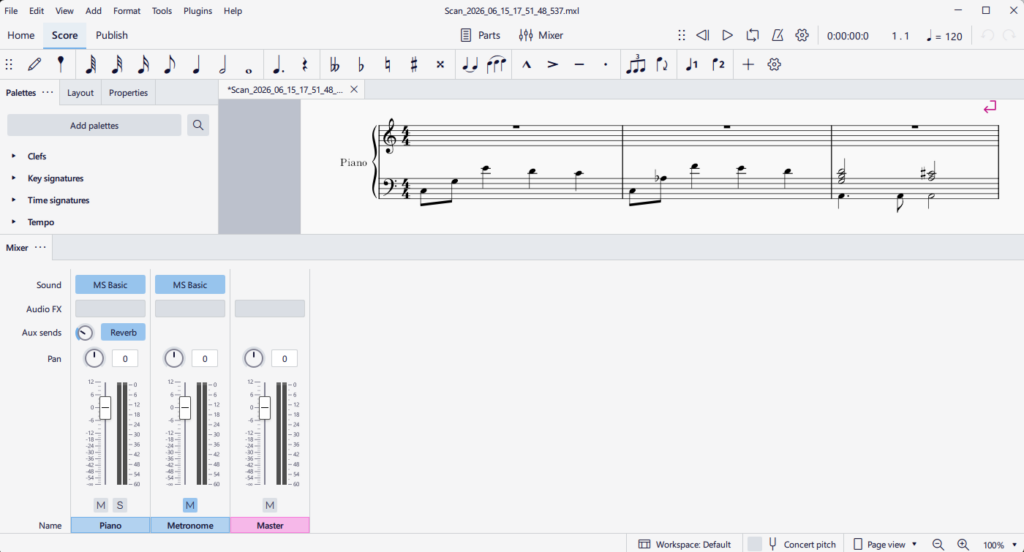
After exporting the MusicXML (MXL) file from Audiveris, it is imported into MuseScore Studio for final editing and playback.
Creating a New Score
- Select File → New Score
- Go to Instruments
- Choose Piano, Grand Piano, or any preferred instrument
- Click Next
Score Information
You can now define the basic metadata and structure of the piece:
- Key signature, Time signature, Tempo, Number of bars (measures)
- Title, Composer, Subtitle, Lyrics (if needed), Copyright information
Importing the Score
- Go to File → Open
- Select the previously exported .mxl (MusicXML) file
MuseScore will automatically import the file and reconstruct the sheet music into a fully editable score.realistic piano sounds.
SeeMusic Playback and Visualization
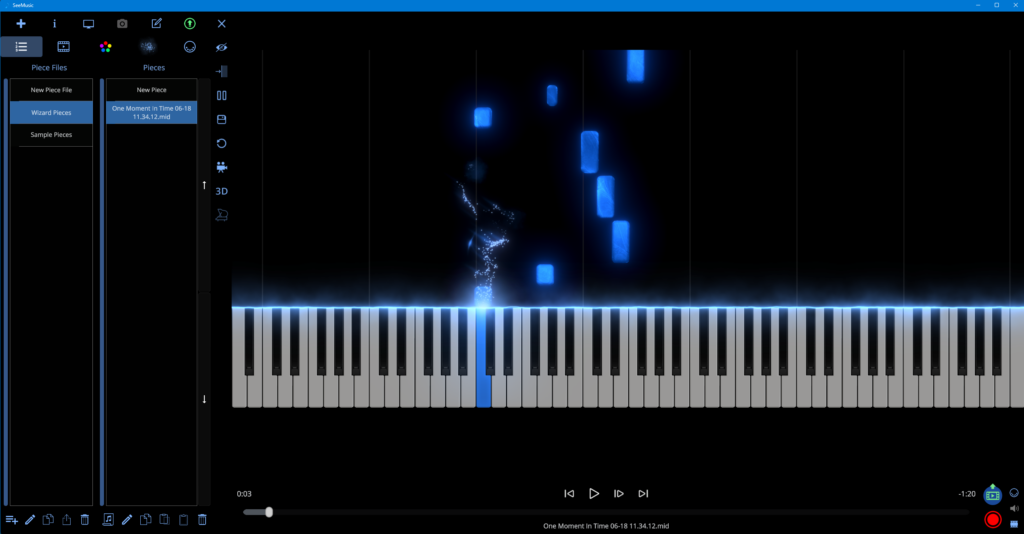
SeeMusic can be used after creating a MIDI file to visualize and play the piece in a piano-style animation.
Importing MIDI
- Open SeeMusic
- Import the previously exported MIDI file
- Select the desired instrument and visualization settings
SeeMusic reads the MIDI information and converts it into a visual piano performance, showing notes as they are played.
Use Case
This is especially useful for:
- Getting a quick overview of a piece
- Following note timing visually
- Creating piano-style playback videos
- Understanding complex passages before practicing
SeeMusic does not replace notation software, but works as a visual playback tool after the score has been converted into MIDI.
Result
The finished workflow allows you to listen to a piece before practicing it, making it easier to understand structure, timing, and musical expression in advance.