MeshCore provides pre-built firmware for supported LoRa devices. The firmware can be installed directly from a web browser using the official MeshCore Web Flasher. No development environment, compiler or manual firmware build is required.

What You Need
Before starting, make sure you have:
- A supported MeshCore device
- A suitable LoRa antenna
- A USB data cable
- A computer with Google Chrome or Microsoft Edge
- An available USB port
Make sure the antenna is connected before powering the device. Transmitting without a suitable antenna can damage the radio module.
Connect Your Device
Connect the device to your computer using a data-capable USB cable.
A charging-only cable will not work because the Web Flasher needs to communicate with the device over USB.
Enter Bootloader Mode
Most supported boards need to be placed into their bootloader or download mode before firmware can be installed.
The exact procedure depends on the hardware. Typically, this involves holding a BOOT, PRG or similar button while briefly pressing RESET.
Check the documentation for your specific board if you are unsure how to enter bootloader mode.
Once the device is in bootloader mode, it is ready for firmware installation.
Open the Official MeshCore Web Flasher
Open the official MeshCore Web Flasher: MeshCore Web Flasher
Use Google Chrome or Microsoft Edge. The Web Flasher uses browser functionality for direct communication with the device over USB.
Select Your Device
In the Web Flasher, select the hardware that matches your device.
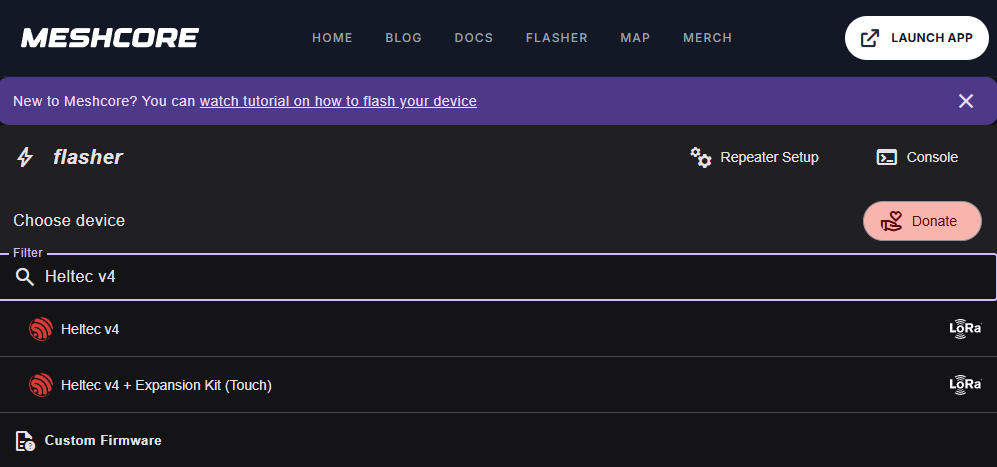
Always use the specific board target when one is available. Do not select a generic ESP32 target simply because your device is based on an ESP32.
Select the Firmware
MeshCore supports different firmware roles depending on how the device will be used.
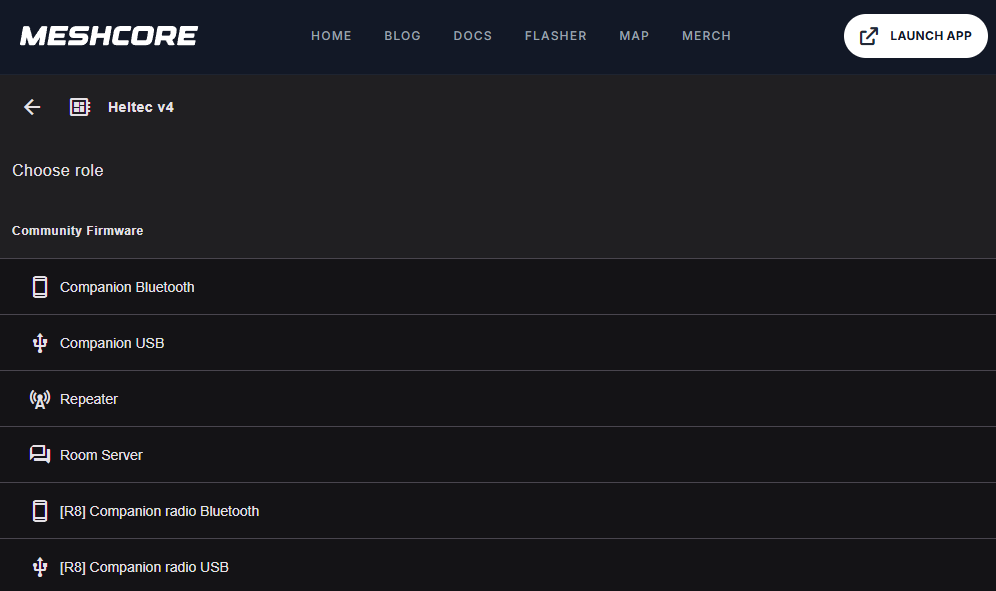
Common options include:
- Companion – connects a radio node to the MeshCore app or a compatible client via Bluetooth or USB, depending on the firmware variant.
- Repeater – forwards MeshCore packets to extend network coverage.
- Room Server – stores messages and provides room-based messaging functionality.
Select the firmware that matches the intended purpose of your device.
Flash the Firmware
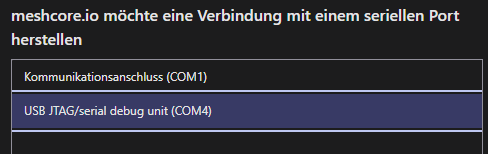
Follow the instructions shown by the Web Flasher and select the USB device when prompted.
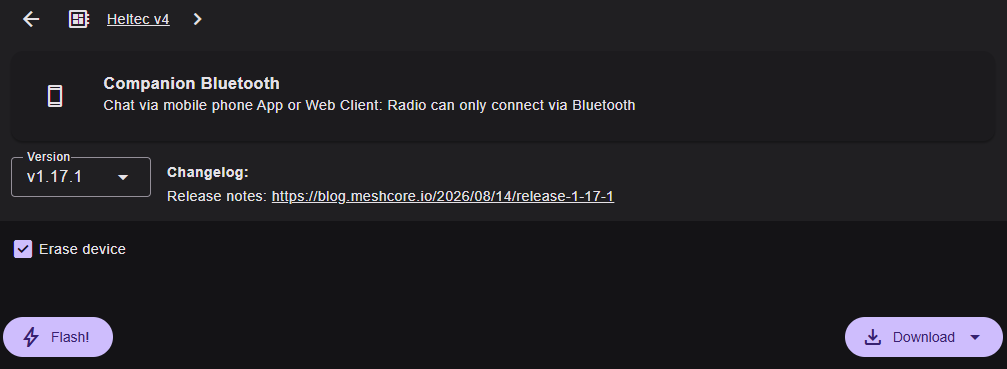
Start the flashing process and wait until it has completed.
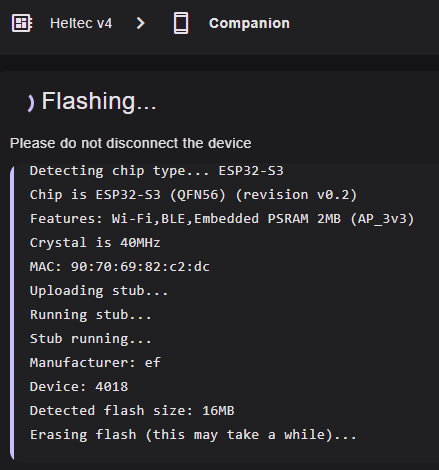
esptool.js
Serial port WebSerial VendorID 0x303a ProductID 0x1001
Connecting...

Detecting chip type... ESP32-S3
Chip is ESP32-S3 (QFN56) (revision v0.2)
Features: Wi-Fi,BLE,Embedded PSRAM 2MB (AP_3v3)
Crystal is 40MHz
MAC: 90:70:69:82:c2:dc
Uploading stub...
Running stub...
Stub running...
Manufacturer: ef
Device: 4018
Detected flash size: 16MB
Erasing flash (this may take a while)...
Chip erase completed successfully in 40.213s
Not changing the image
Compressed 1335088 bytes to 793852...
Writing at 0x0... (2%)
Writing at 0x1270c... (4%)
Writing at 0x172a5... (6%)
...
Writing at 0x143596... (100%)
Wrote 1335088 bytes (793852 compressed) at 0x0 in 12.872 seconds.
Leaving...
Hard resetting via RTS pin...
Do not disconnect the USB cable or power off the device while the firmware is being written.
After a successful installation, the device should restart and boot into MeshCore. The message “Hard resetting via RTS pin” is a normal esptool completion message and does not necessarily indicate a problem. If the device does not restart automatically, press the Reset button.
Configure MeshCore After Connecting via Bluetooth
- After connecting the MeshCore node to your smartphone via Bluetooth, complete the basic configuration in the MeshCore app.
- The exact options may depend on the installed firmware and app version.
Set the Node Name
- Start by assigning a name to your node.
- The node name is used to identify the device within MeshCore.
- Choose a short and recognizable name. Avoid including unnecessary personal information.
Configure the Radio Settings
Open the Radio Settings and select the appropriate predefined radio preset.
For this example, select the “Portugal 868” preset. Before using this preset, verify that its frequency and transmission parameters comply with the regulations applicable to your location and match the settings used by your intended MeshCore network.
The preset uses:
- Frequency: 869.618 MHz
- Bandwidth: 62.5 kHz
- Spreading Factor: SF7
The Portugal 868 preset uses a coding rate of CR 6. Make sure this setting matches the configuration of the MeshCore network you want to join.
Do not manually change individual LoRa parameters when using a predefined preset unless you specifically know which network configuration you are trying to use.
Save the Configuration
- Apply the configuration and allow the node to restart if requested.
- After the restart, reconnect to the node via Bluetooth.
- The basic MeshCore configuration is now complete.