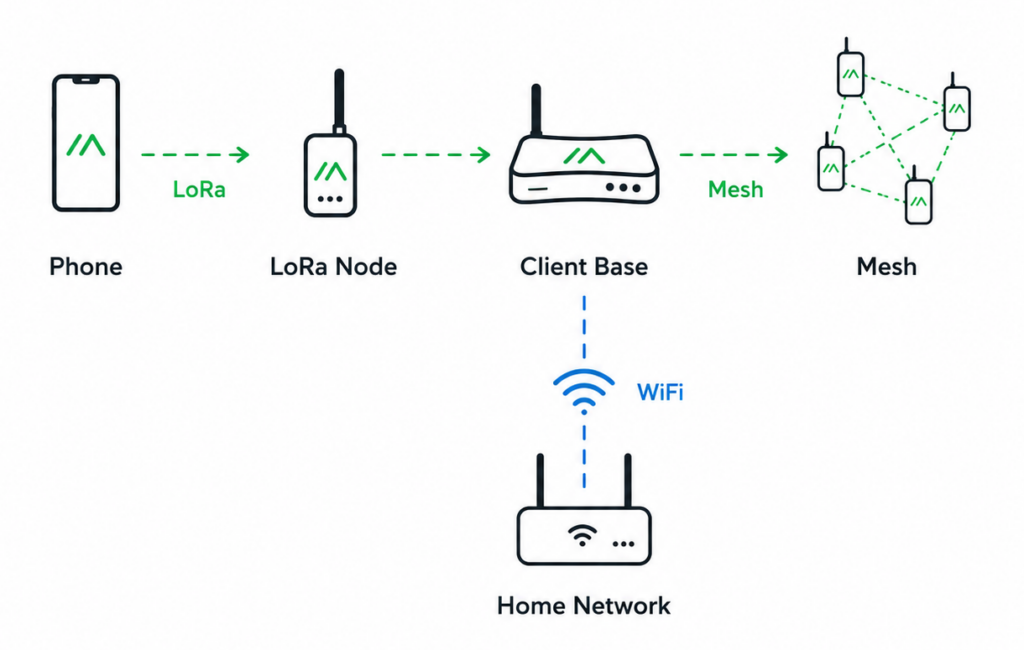
Meshtastic nodes can be connected to a local WiFi network to enable remote management through the built-in Web Interface. This is especially useful for fixed installations where physical access is limited, such as rooftops, attics, balconies, or outdoor mast setups.
WiFi connectivity allows the node to be managed over the local network without requiring Bluetooth or USB access.
When WiFi Connectivity Makes Sense
Enabling WiFi is mainly useful for stationary nodes that act as stable infrastructure points in the mesh. Typical use cases include:
- Fixed installation nodes (e.g. CLIENT_BASE setups)
- High-positioned outdoor nodes
- Remote or hard-to-reach installations
- Nodes used for monitoring or administration
WiFi is mainly useful for fixed installations and is generally not recommended for mobile or battery-powered nodes due to increased power consumption.
Prerequisites
Before enabling WiFi, ensure:
- The device supports WiFi (hardware-dependent)
- Meshtastic firmware is installed and up to date
- You have initial access via Bluetooth or USB
Connecting to the Node
To configure WiFi, first connect to your node using one of the standard methods:
- Meshtastic mobile app via Bluetooth
- USB connection via Web Client
- Serial console access
Once connected, open the device configuration menu.
Enabling WiFi
Navigate to:
Config → Network → WiFi
Enable WiFi and configure your network credentials:
- WiFi Enabled: true
- SSID: Your_WiFi_Name
- Password: Your_WiFi_Password
Save the configuration.
Reboot and Network Join
After saving the settings, reboot the device.
On startup, the node will attempt to join the configured WiFi network. If successful, it will receive an IP address via DHCP from your router.
Finding the Node IP Address
If the IP address is unknown, it can usually be found via:
- Router DHCP client list
- Meshtastic device information screen
- Network scanning tools (e.g. nmap or arp-scan)
Once connected, open a browser and enter the assigned IP address: http://192.168.x.x
Security Considerations
Because WiFi enables network access to the device interface, it should be handled carefully:
- Do not expose the node directly to the internet
- Avoid port forwarding to the web interface
- Restrict access to trusted local networks
- Consider VPN-based remote access if needed
- Use secure WiFi credentials
The interface is designed for local administration, not public exposure.
Summary
WiFi connectivity adds a convenient management layer to Meshtastic nodes in fixed installations. It allows direct access to the web interface over the local network and significantly improves usability for maintenance, monitoring, and configuration tasks.